How to Withdraw and Return IP Sub-Blocks
Suppliers can use Withdrawal to temporarily remove selected IP-Block sub-blocks from InterLIR platform circulation and return them when ready to offer them for rent again.
Withdrawal is similar to a Reserve: in both cases the selected resources become unavailable on the Marketplace. The difference:
- A withdrawn sub-block is removed from platform circulation and may be used by the Supplier for their own business needs until it is returned.
- A reserved sub-block is only temporarily hidden from the Marketplace. See How to Reserve an IP Block.
Withdrawal is performed at the sub-block level within an imported parent block. It is not possible to withdraw all sub-blocks of a parent block.
💡 Related: Before you can withdraw sub-blocks, the parent IP-Block must first be imported and approved. See How to Import an IP Block.
Prerequisites
- You must have an approved Business Account.
- You must have at least one imported parent IP-Block with eligible sub-blocks.
- The sub-blocks you want to withdraw must meet the eligibility requirements.
What is a Withdrawal?
A Withdrawal is a Supplier-initiated request, reviewed by InterLIR support, to temporarily take selected sub-blocks out of platform circulation.
Once a withdrawal request has been approved:
- The selected sub-block is no longer available on the Marketplace.
- Customers cannot order or rent it.
- The Supplier may use it for their own needs until it is returned.
- The number of IP addresses offered for rent is reduced by the number of withdrawn addresses.
- The utilization percentage on the dashboard is recalculated.
- A grey entry with the Withdrawn status appears on the Utilization page.
The sub-block remains withdrawn until you submit a return request and that request is approved.
Withdrawal Eligibility Requirements
A sub-block can be selected for withdrawal only when all of the following conditions are met:
- The sub-block has no active order, rental, or subscription.
- None of its nested sub-blocks have active orders.
- There are no pending withdrawal or return approval processes for the selected sub-block or its nested sub-blocks.
- The parent block has no active reservation.
- The selected sub-block has no active reservation.
- The sub-block is not already withdrawn.
- There is no active withdrawal request for the sub-block.
- There is no active return request for the sub-block.
- The selected sub-block is not the last remaining sub-block of the parent block.
- The parent block is not a
/24.
The block’s Minimal Split Size and Published for Marketplace settings do not affect whether its sub-blocks are eligible for withdrawal.
Step 1 — Open the IP Blocks page
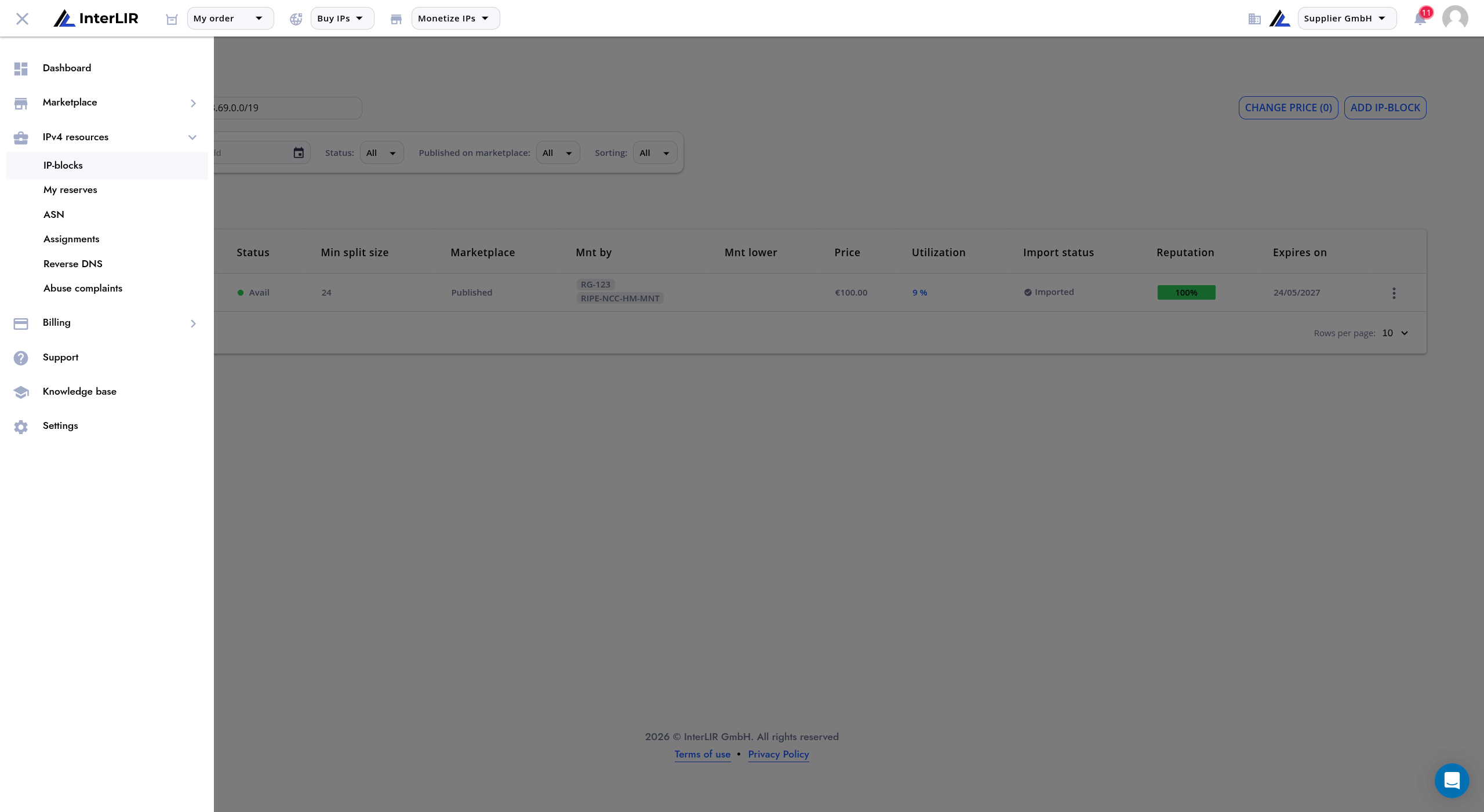
Go to IPv4 resources → IP-blocks.
📍 IPv4 Resources → IP-Blocks
🔗 https://portal.interlir.com/inetnums
Step 2 — Open the contract details
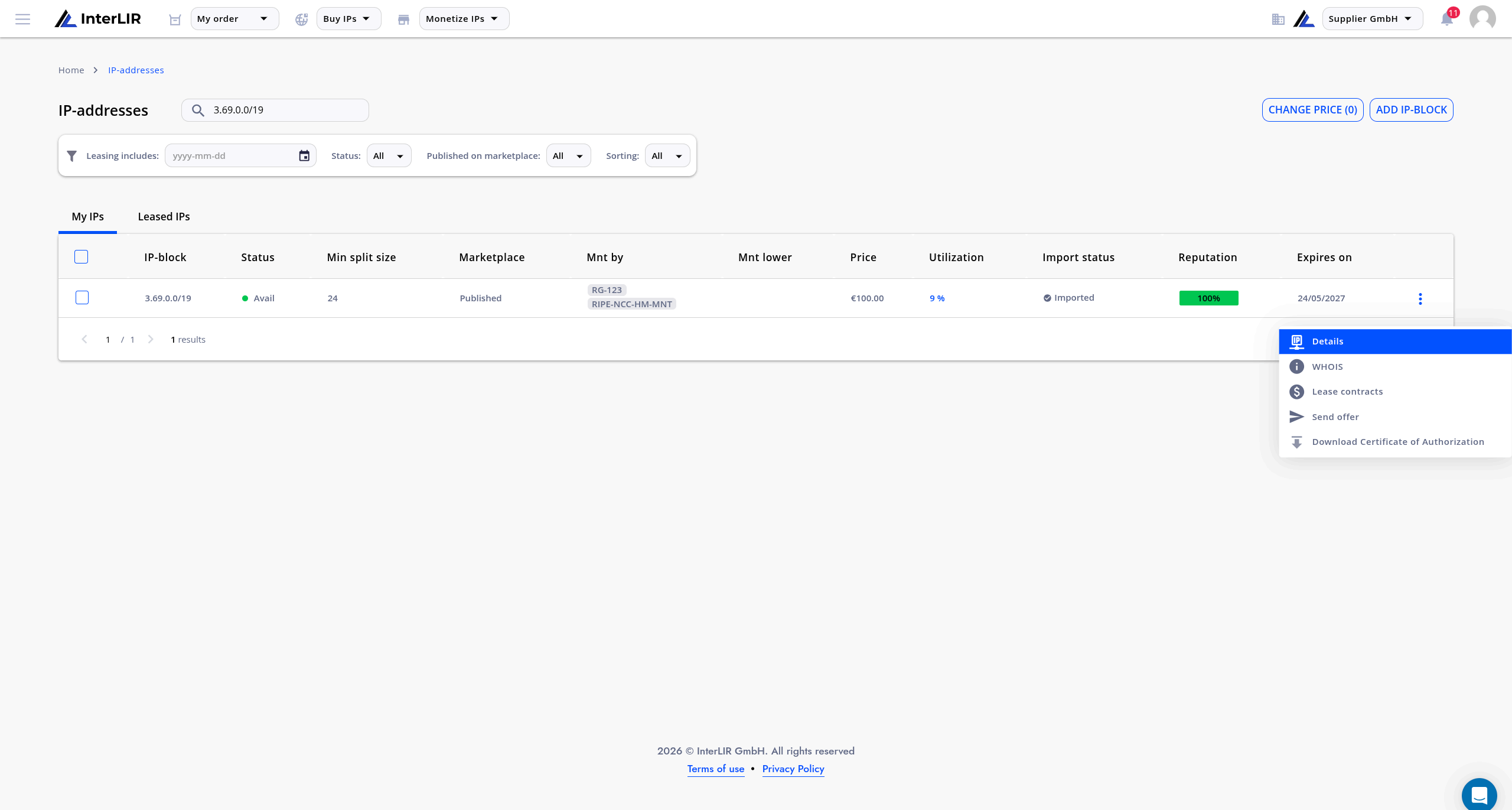
Find the parent block containing the sub-blocks you want to withdraw. Open the row actions menu and click Details.
Step 3 — Find the Withdrawals section
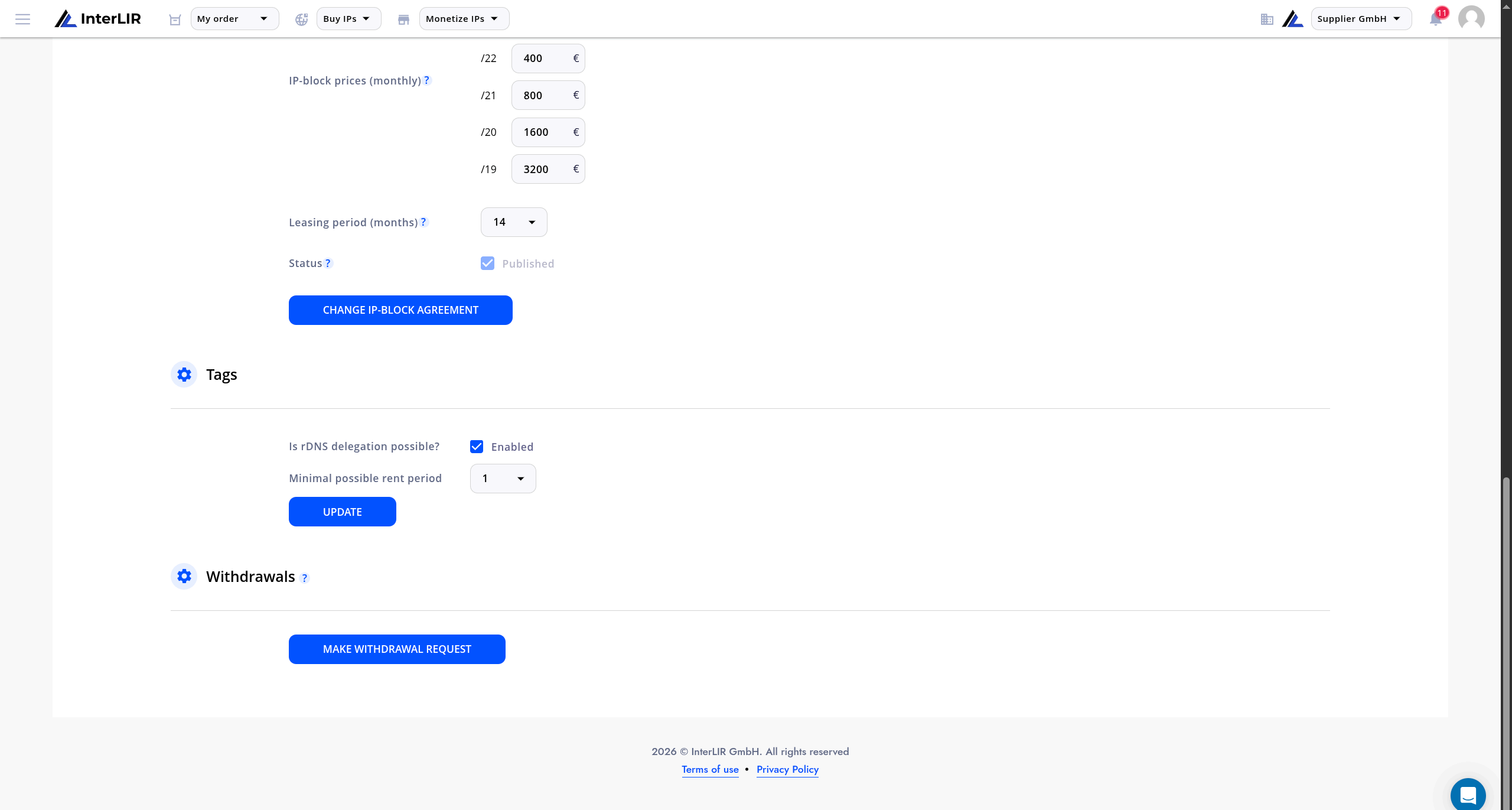
Scroll to the Withdrawals section in the contract details.
From here you can request InterLIR support to temporarily withdraw specific sub-blocks. After approval, the selected sub-blocks are deactivated until you submit a request to return them.
Step 4 — Open the withdrawal request form
Click Make Withdrawal Request.
The first step asks you to choose the request type. Withdrawal is selected by default.
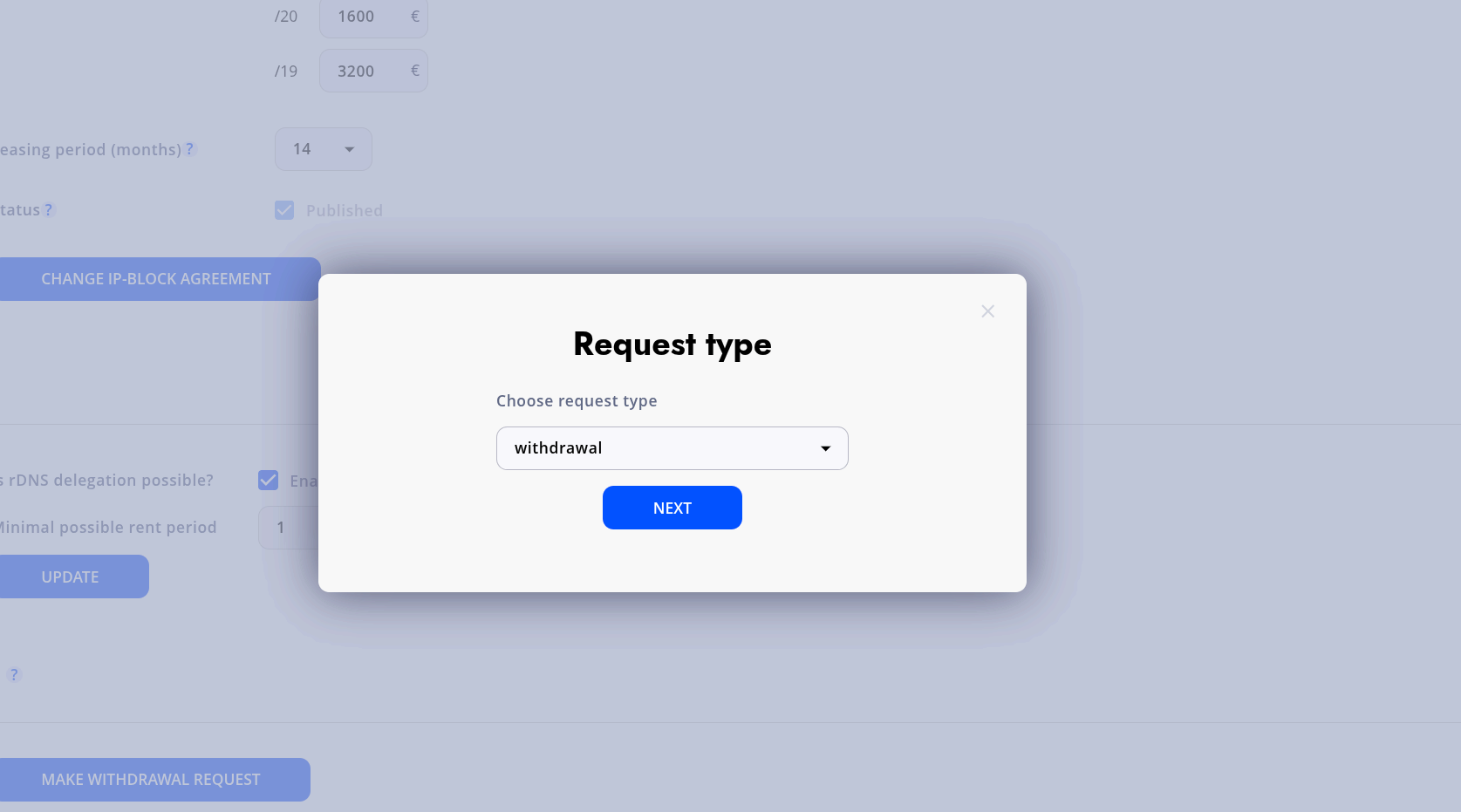
Click Next. The request form then includes:
- A sub-block selection list
- An optional comment field (up to 250 characters)
- The Request button
Step 5 — Select the sub-blocks and submit
The sub-block list shows only sub-blocks currently eligible for withdrawal. You can select multiple sub-blocks in one request.
Optionally add a comment, for example:
The block needs to be withdrawn for my business needs for a period of up to three months.
Click Request to submit.
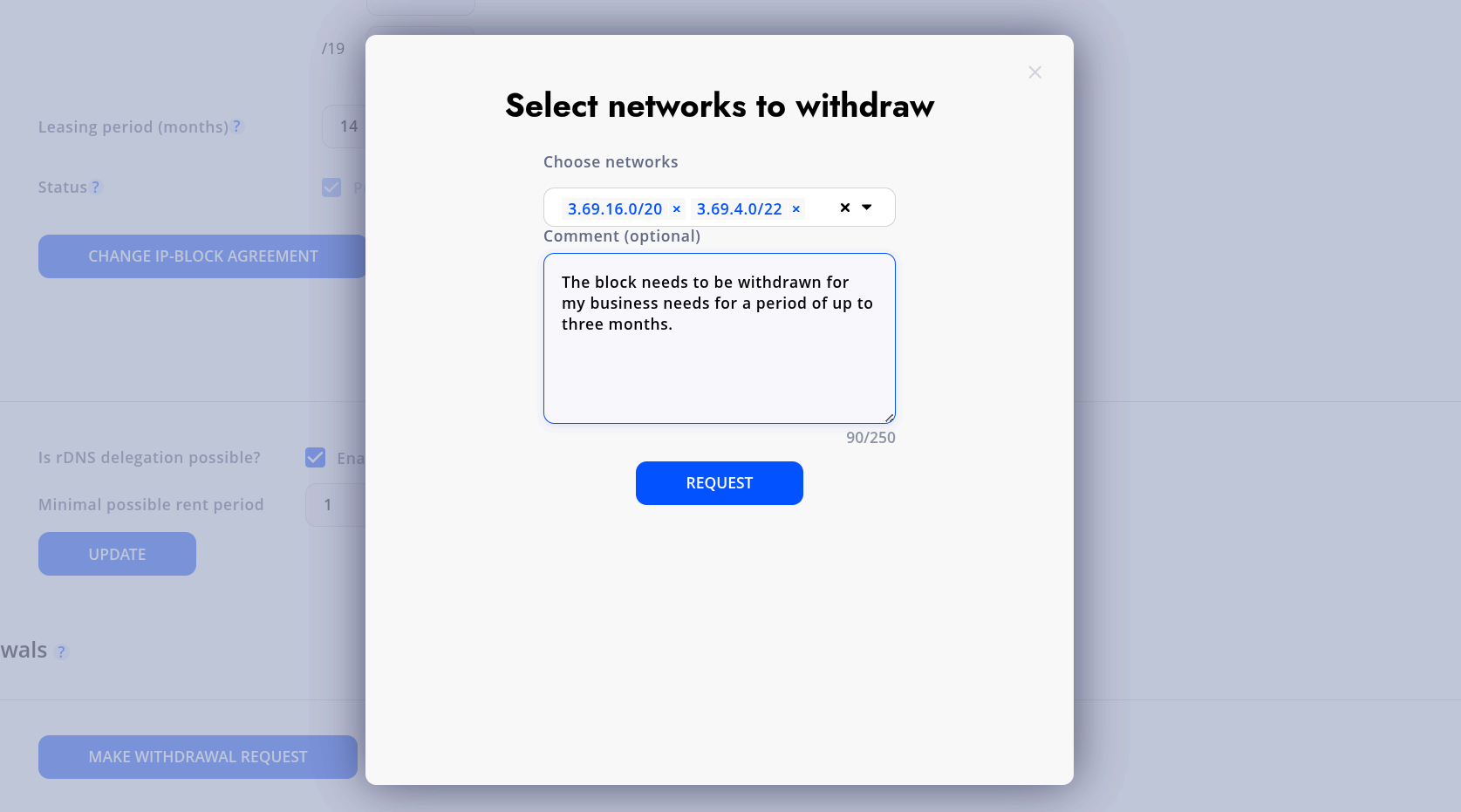
The selected sub-blocks remain available on the platform until the request is processed successfully. After approval, they receive the Withdrawn status, become unavailable on the Marketplace, and utilization data is recalculated.
Returning Withdrawn Sub-Blocks
When you no longer need the withdrawn sub-blocks for your own purposes, submit a request to return them to the platform.
Once a return request has been approved:
- The sub-block is returned to the platform.
- It can become available on the Marketplace again.
- It can be ordered or rented, provided there is no active order or another restriction affecting its availability.
- The number of IP addresses offered for rent increases.
- The utilization percentage is recalculated.
- The Withdrawn entry disappears from the Utilization page.
Return eligibility requirements
A sub-block can be selected for return when:
- It currently has an active withdrawal.
- There is no pending withdrawal approval process for it.
- There is no pending return approval process for it.
For blocks registered with RIPE NCC, the required InterLIR maintainers must be restored on the parent block before the withdrawn sub-blocks can be returned. See Step 8.
Step 6 — Open the return request form
Open the same contract details and go to the Withdrawals section.
Click Make Withdrawal Request to open the request form.
Step 7 — Select Return and the sub-blocks
Open the operation type list and select return.
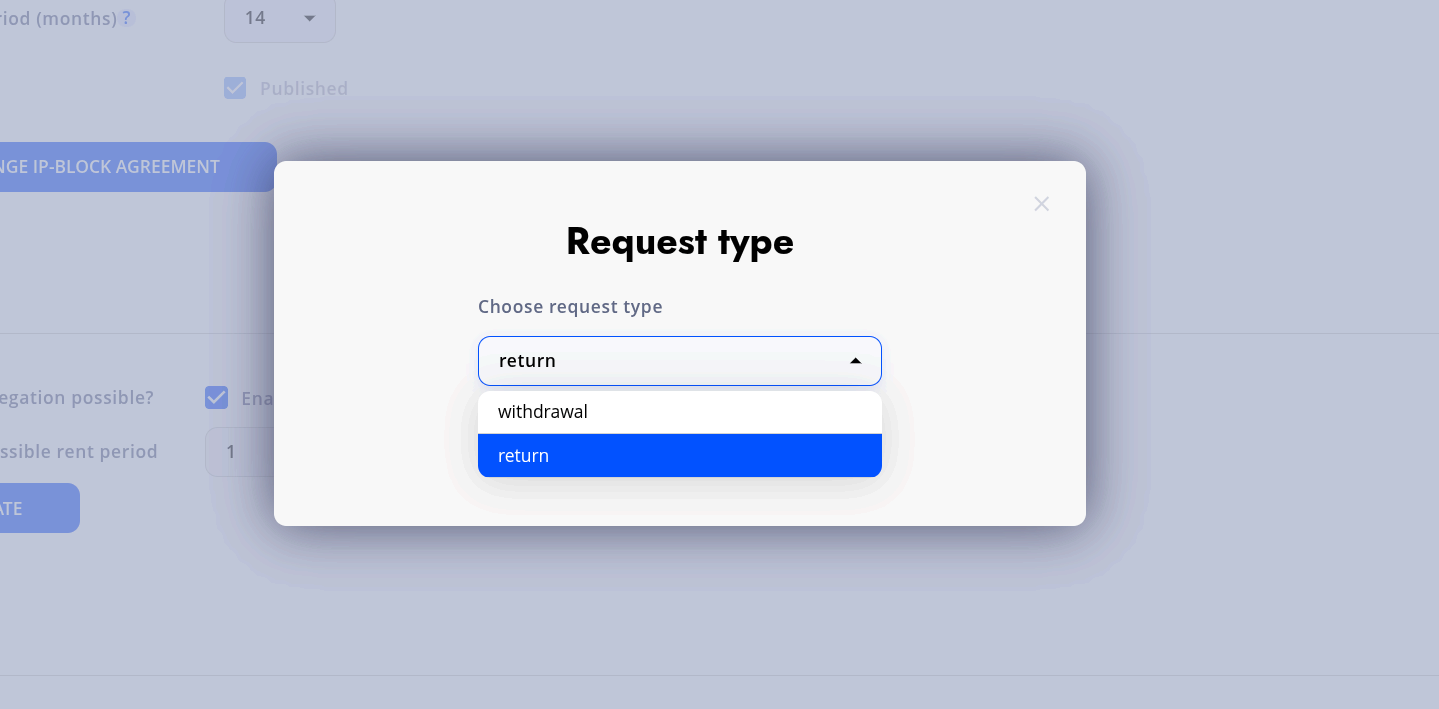
The sub-block list then shows the sub-blocks that are currently withdrawn and eligible for return.
Select one or more sub-blocks. Optionally add a comment of up to 250 characters, for example:
The work has been completed, and I would like to return the blocks so they can be rented out again.
Click Request to submit the return request.
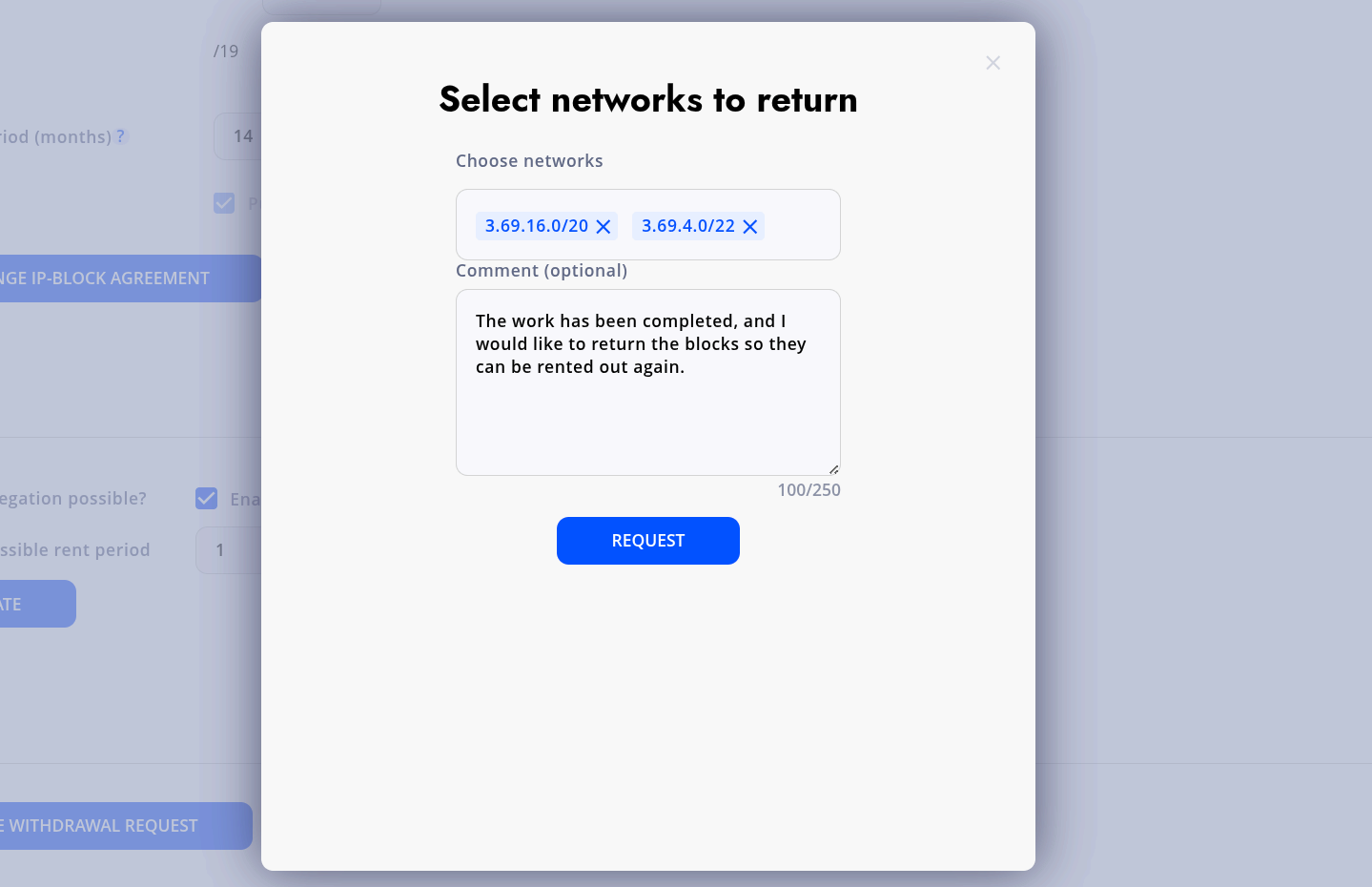
Step 8 — Confirm RIPE maintainers (if applicable)
Before returning sub-blocks from a RIPE NCC block, make sure the required InterLIR maintainers have been restored.
In the return request form, confirm:
“MNT-BY or MNT-LOWER/MNT-DOMAIN/MNT-ROUTE has been successfully set up.”
The Request button remains inactive until this checkbox is selected.
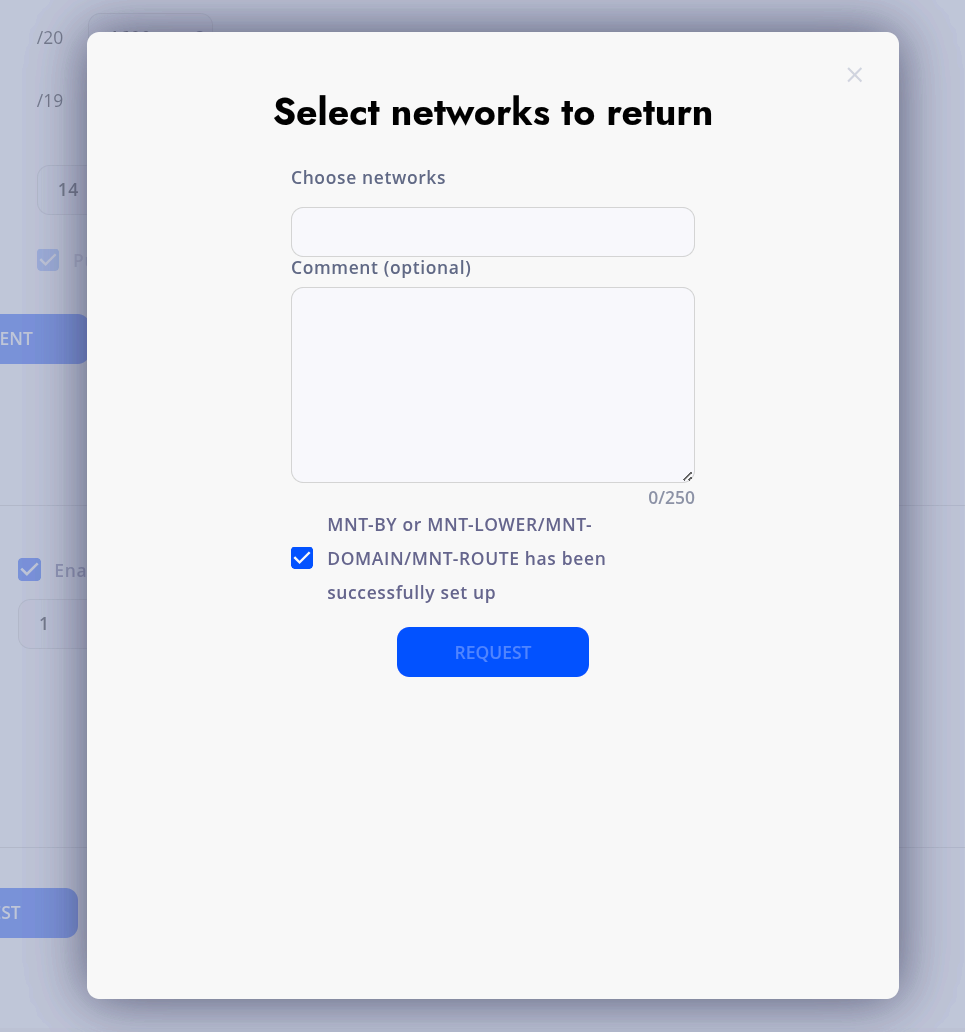
After the return request has been processed successfully, the sub-blocks are returned to the platform and can become available for rent again.
Request Review and Support
Withdrawal and return requests are reviewed before any changes are applied.
A request may be declined if the selected sub-blocks do not meet the required conditions or if additional action is needed. If your request is declined, the InterLIR support team will contact you.
Contact support if you have questions about:
- Withdrawal or return eligibility
- The status of your request
- RIPE maintainer configuration
- The Marketplace availability of a returned sub-block
See also
- How to Reserve an IP Block — temporarily hide blocks from the Marketplace without withdrawing them
- How to Import an IP Block — make your blocks available for rent on the Marketplace
- Withdrawal — glossary definition
- Reserve — glossary definition
- Supplier — glossary definition
- IP-Blocks — glossary definition